Tomo — Print Preparation Software
Tomo is a standalone Windows desktop app for preparing CAL/VAM print files. It is a graphical front end for VAMToolbox, the open-source library that solves the tomographic optimization at the heart of Computed Axial Lithography. Tomo takes an STL model all the way to a print-ready light-projection sequence (the sinogram video your projector plays) without writing a line of Python.
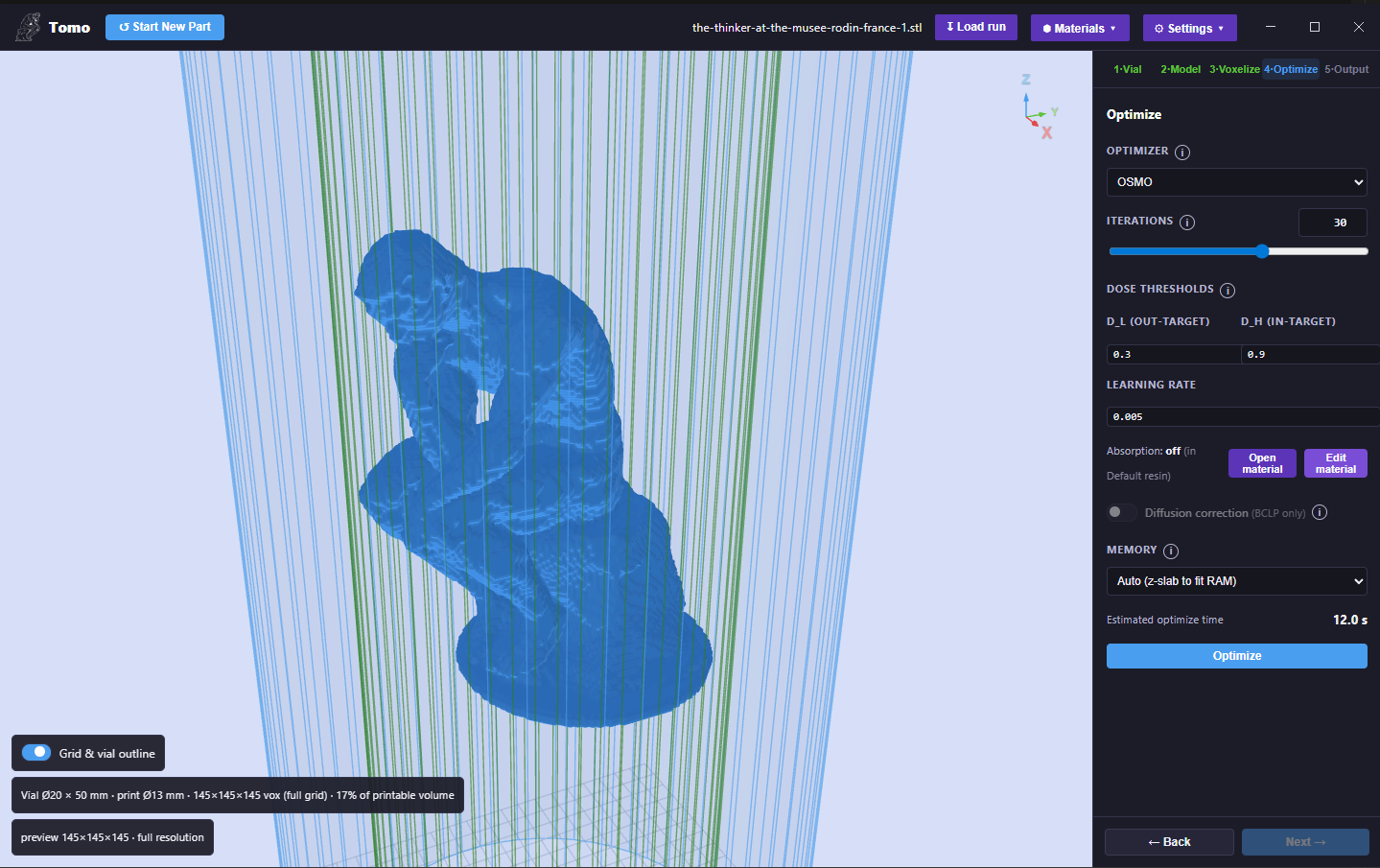
Tomo — a guided desktop workflow for CAL print preparation.
Note
Tomo is the tool that produces the .mp4 print files that the OpenCAL printer plays
from a USB drive (see Controls & Operation). Use Tomo to turn a 3D model into a print; use the
printer’s on-device menu to run it.
What Tomo Does
In CAL/VAM printing, a part is cured all at once inside a rotating vial of photopolymer resin. A projector shines a sequence of images into the vial as it spins; where enough light accumulates over a full rotation, the resin solidifies. Computing which images to project (the sinogram) is an inverse tomography problem: you reconstruct the light field that, integrated over all angles, deposits the right dose everywhere inside the target geometry and nowhere outside it.
VAMToolbox solves that problem from Python. Tomo puts the entire pipeline behind a guided five-stage graphical workflow (set up the vial, place the model, voxelize it, optimize the projections, and preview/export the result), with live 3D previews, hardware auto-tuning, and one-click video export. It ships as a single Windows installer with a self-contained Python/CUDA runtime bundled in, so end users never set up a Python environment.
Important
Tomo is a front end, not a fork. All of the optimization, voxelization, and physics is performed by VAMToolbox. If you would rather script the same pipeline, use VAMToolbox directly.
Installation
Download the latest Tomo installer from Google Drive.
Run the installer. It installs per-user to
%LOCALAPPDATA%\Programs\Tomo, with no administrator rights required.Launch Tomo from the Start Menu or desktop shortcut.
Note
The first launch is slow (~90 seconds) while Windows Defender scans the freshly installed executables. Subsequent launches are fast.
Requirements
Requirement |
Notes |
|---|---|
Operating system |
Windows 10 / 11 (64-bit). |
GPU |
An NVIDIA CUDA-capable GPU is strongly recommended. Tomo falls back to CPU where possible, but large parts at full resolution expect a GPU. Hardware is auto-detected. |
Python |
None required — a self-contained runtime is bundled in the installer. |
How Tomo Is Built
Tomo is a three-layer desktop application packaged with Electron:
Frontend — a React (Vite) single-page app with the four-tab workflow and interactive Three.js 3D previews.
Backend — a small Flask server that threads the long-running voxelize/optimize jobs and reports progress, ETA, and cancellation to the UI.
Engine — the backend calls the high-level
vamtoolbox.pipelineAPI, which performs voxelization, optimization, rebinning, and video export. Tomographic projection uses ASTRA with CUDA.
See the Tomo: Workflow & Controls page for the full workflow and a reference of every control.